
Import contacts (CSV)
This guide walks through importing contacts from the panel.
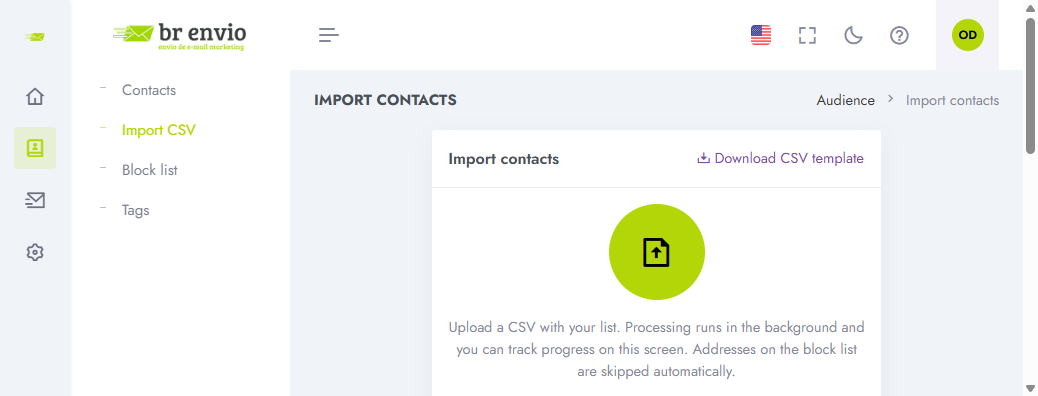
What you will do
- Prepare a CSV file with at least an email column.
- In the panel, open Audience → Contacts and start the import.
- Map file columns to Br Envio fields (email, name, phone, and your custom fields).
- (Optional) Click Simulate import to see how many rows would pass and which would be rejected — nothing is saved.
- Confirm. The import runs in the background — you can leave and come back later.
Simulate before importing
Use Simulate import to check the file without changing your list.
- The summary shows how many rows would pass and rejection reasons (format, MX, block list, etc.).
- You can download a sample or the full rejected-rows CSV (within the simulation limit) to fix the file.
- Large files run the simulation in the background — wait on the same screen.
- After a real import, if there are rejections, use Download rejected in the session history.
Phone in the CSV
Map a column to phone. Accepts country code + number (e.g. 5511988887777) or Brazilian numbers only (10/11 digits — the system assumes country code 55).
Typed field formats
- Dates:
YYYY-MM-DD(e.g.1990-05-21). - Yes/No:
true/false,1/0, as accepted by conversion. - Lists: use exactly the option text configured in Fields.
- Invalid typed value: the row counts as a format error and is skipped.
Important rules
- Do not buy lists. Only import people who asked to hear from you.
- Remove invalid emails or people who already unsubscribed before importing.
- Contacts on your account block list will not be imported again.
- Emails that hard-bounced or were marked as spam anywhere on the platform also will not enter — that is not your block list; it protects the sending account. The summary separates email (specific address) and blocked domain. Gmail, Hotmail and other mailbox providers are not blocked as whole domains (only the specific address that failed).